Showing posts with label linux. Show all posts
Showing posts with label linux. Show all posts
Friday, July 29, 2011
My dotfiles are on GitHub
Since I wanted to have consistent configuration across all the PCs I work on, I've created a git repo with most crucial dotfiles (such as vim config or openbox files). My dotfiles can be found here.


Wednesday, July 27, 2011
Finding your way in vim
Vim is quite powerful programmer's editor, but has a very steep learning curve and it takes time to configure it properly. In this tutorial I'd like to share my experiences with configuring vim for efficient symbol, buffer and file navigation. In other words, I'm going to focus on finding these things easily in vim and ignore all other configuration aspects. Getting these things right seems to be the most confusing part for a lot of people who can otherwise use vim already. It's also the part that gives a big efficiency boost when programming or just browsing code, especially when it comes to finding symbol definitions quickly.
Preface
This is by no means a definitive guide on the subject. It' just a bunch of things I learned over years when using vim. Vim evolves, new plugins get developed, so the methods I list here may not neccessarily be the best solutions. But they should work and they do the job for me. These methods should work for pretty much every popular programming language, such as C, C++, Java, Python, Ruby etc.
Looking for symbols
A word of caution first: there is no perfect symbol-based navigation for programming languages such as C++ or Java in vim, as vim doesn't perform any syntax analysis of the code. So, for example, it's not possible to go to the right definition of foo->bar() in C++ code if there are multiple definitions of bar() method, because vim has no notion of foo's type.
Tags
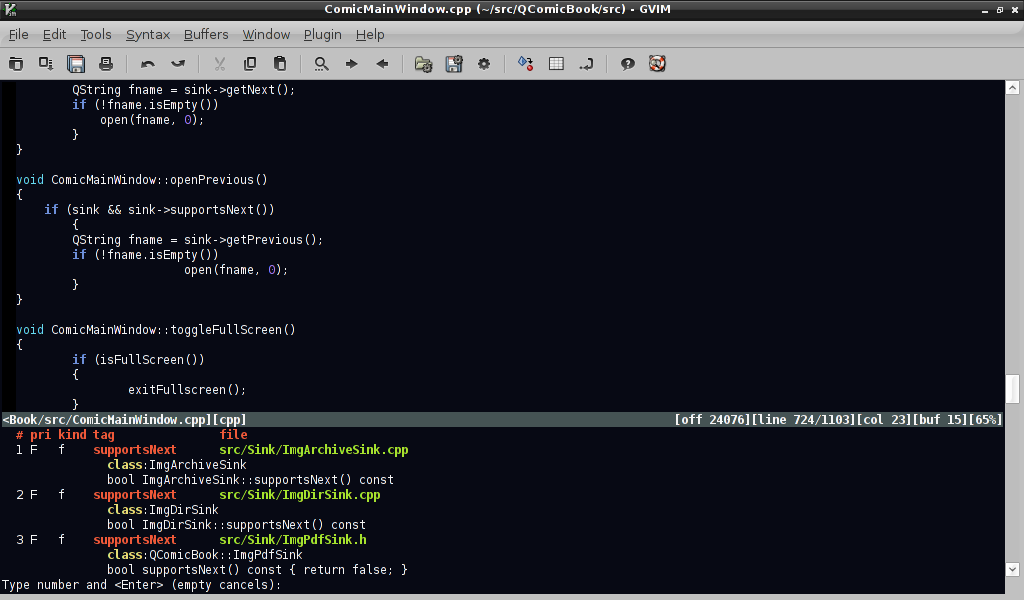 |
| Jumping to tag with g CTRL-] |
Vim has a built-in feature for looking for symbols based on so-called tags file. Tags file needs to be created first with ctags utility, e.g:
$ ctags -R /your/source/code
This will create tags file in your current directory. Add the following line to your .vimrc file to load tags automatically from current working directory as well as from specific path automatically:
:set tags=./tags,/home/user/your/source/code
From now on, you can jump to the first matching symbol definition by pressing CTRL-] over a symbol. CTRL-T will bring you back to where your search started. If there are several matching tags for a symbol (e.g. overloaded methods), you can use :tselect to choose the right one. Even better, if you know in advance there will be multiple matches, press "g CTRL-]" instead of CTRL-] over a keyword to bring the selection list right away. See :help tags for more information on how to use tags effectively.
 |
| Tagbar plugin window |
Tags list
A very useful feature of most IDEs is the list of all classes/methods/symbols for all open files. This can easily be achieved in vim by installing a plugin such as Tagbar or Taglist. Both have similar capabilites, but I tend to like Tagbar more, as it displays tags ordered by their scope and displays method signatures (unlike Taglist, which displays only names).
Cscope-based navigation
Cscope is similiar to ctags, only a bit more powerful since it's capable of searching for functions calling given function etc. To use this capabilities in vim you have to scan you source files with cscope first (e.g. 'cscope -R -b' in your source code directory). Cscope creates a cscope.out file that needs to be loaded in vim by :cscope add /path/to/cscope.out. A common idiom for doing this automatically on vim startup (taken from vim help - see :help cscope) is:
if filereadable("cscope.out")
cs add cscope.out
" else add database pointed to by environment
elseif $CSCOPE_DB != ""
cs add $CSCOPE_DB
endif
Once loaded, cscope symbol database may be queried by issuing :cscope find with a query type and symbol name, e.g. to search for functions calling given function, type:
:cs find c foobar
This is not very convient to type, so you can define mappings for all cscope queries like this:
nmap <C-\>s :cs find s <C-R>=expand("<cword>")<CR><CR>
nmap <C-\>c :cs find c <C-R>=expand("<cword>")<CR><CR>
... and so on.
If you use tags and cscope at the same time, they are independent of each other, use different keyboard shortcuts and need to be queried separately. This can be solved by using :cstag for symbol defintion lookups: cstag searches both databases (by default cscope is searched first). And if you set cscopetag option, i.e.
:set cscopetag
then all tags queries (like CTRL-]) will use :cstag instead, so both databases will be searched.
 |
| Grep search results |
Grep-based searching
Searching for symbols with grep doesn't sound too attractive, but it's actually quite powerful once combined with a handly shortcut key and as long as the symbol you're searching for is not too common.
First off, I highly recommended installing ack-grep, which is a grep-like utility designed specifically for grepping source code files. Then configure vim to use it instead of regular grep - e.g. put this in your .vimrc:
set grepprg=ack-grep\ --cpp\ --cc\ --perl\ --python\ --make
Then define a shortcut key for grep, e.g.
:nmap _g :grep <C-R>=expand("<cword>")<CR><CR>
Pressing _g will grep source code files recursively, starting from the vim's current working directory, for the word under the cursor. Vim places grep results in so called 'quickfix' window, which you can bring up by calling :cwindow. You can navigate through quickfix entries by calling :cnext and :cprev. It's very usefull to map keys for them as well:
:map <F7> :botright cwindow<CR>
:map <F5> :cprev<CR>
:map <F6> :cnext<CR>
If grepping in the current directory is not what you want, then you may want to play with 'expand' macro to grep starting from current file's directory, or from a predefined directory and add new shortcuts for them -- here is how to create a Gvim menu entry for them:
:amenu Devel.Grep\ file\ dir :grep <C-R>=expand(expand("<cword>") . " " . expand("%:h"))<CR><CR>
:amenu Devel.Grep\ source\ dir :grep <C-R>=expand(expand("<cword>") . " " . expand("~/src"))<CR><CR>
Buffer navigation
Standard vim capabilities for navigating to opened files (buffers) are a bit limited when working with large number of files, so installing external plugin(s) is highly recommended. Just for the record, the standard commands for buffer navigation in vim are:
:ls -- shows buffer list
:buffers -- same as above
:bnext -- go to next buffer
:bprev -- go to previous buffer
:[N]b -- edit Nth buffer
There are several plugins that simplify buffer navigation, but I recommend the following: bufexplorer, buffergator and buftabs. Bufexplorer provides a sorted list of all the buffers, which can easily be navigated with cursor keys; pressing ENTER over buffer name makes it active. By default buffers are sorted in MRU (most recently used first) order, but this can easily be changed by pressing 's' in the bufexplorer window. Bufexplorer can be activated by \be, \bv and \bs keyboard shortcuts, but since I use it a lot I prefer a simpler shortcut, e.g. F3 key alone:
:imap <F3> <ESC>:BufExplorer<CR>
:map <F3> :BufExplorer<CR>
Buffergator is similiar, but makes it easy to preview buffers without leaving list of buffers. Upon invocation with \b (or :BuffergatorToggle), a new vertical window with buffers list is opened. CTRL-N, CTRL-P and SPACE keys can be used to navigate the list and preview buffers. ENTER key over buffer name opens it for editing and closes buffer list. One problem buffergator has is its slow response time on invocation: for some reason it takes 1-2 seconds to bring the list of buffers up, whereas it's instantaneous with bufexplorer.
Buftabs is a littler helper addon that is worth installing alongside bufexplorer and/or buffergator. It provides a tabs-like list of buffers displayed in the bottom of the window which is very handy for switch buffers in a circular way, in particular if you map :bprev and :bnext to keys such as CTRL-Left and CTRL-Right:
:noremap <C-left> :bprev<CR>
:noremap <C-right> :bnext<CR>
File navigation
The standard way for finding files is via :Explore [DIR] (or :edit [DIR] and :edit [FILE]). They both support filename completion with TAB key. Explore may be used to find files recursively, if you know only part of a file name, e.g:
:Explore **/*foo*
If you know complete file name, but not its path, you can use vim's built-in find command, e.g:
:find foobar.cpp
This will search for the file in all paths listed in vim's 'path' variable, which is current directory and /usr/include by default. You may want to set to also include subdirectories of your sources directory, for example:
:set path=.,~/src/**,/usr/include,,
Vim's path variable has one more use: it allows for opening files whose name is under or after the cursor. A typical use case is opening an included file in C/C++ source code, by moving over file name in the #include directive, and pressing 'gf' (goto file). Quite handy.
There are plugins which make finding files easier. One of the most useful is NERDTree, which implements a nice filesystem explorer in the form of a tree structure. It's very fast (uses caching), configurable (screen position, list of file patterns to be ignored etc. can be adjusted) and smart (e.g. remembers last cursor position when toggling off and on). It's so useful that its worth having a dedicated keyboard shortut for it, e.g.
:imap <F4> <ESC>:NERDTreeToggle<CR>
:map <F4> :NERDTreeToggle<CR>
Conclusion
The above tips should improve your day-to-day productivity a lot when programming. Go use it, learn it and improve. And let me know in the comments about your ideas and improvements!
Thursday, April 28, 2011
Protect your Linux box against fork-bomb and faulty apps DoS
Many (most? all?) default Linux installations of popular distros are still vulnerable to fork-bombs, i.e. can easily be rendered unusable (until reboot) by spawning a large number of processes. You can easily test how your system behaves with well known fork-bomb for bash:
:(){ :|: & };:
Keep in mind that this problem can easily be triggered by a programming error or misusing an application. For example, I encountered it once when rebuilding a Makefile-based project while having CDPATH environment variable set in a way, that resulted in recursive calls to make program in an infinite loop. When that kind of problem happens, it may be hard to regain control and rebooting the system may be the only option.
Fortunately, Linux has measures to protect against such problems and it's very easy to set up. The best way to go is to relay on pam_limits module, configured via /etc/security/limits.conf. It's probably installed by default by all popular Linux distributions (I've tested it on Arch Linux and Ubuntu). Limiting the number of processes to 240 for given user is as simple as:
pawel hard nproc 240
With such setting, logout and login back and verify it has been activated:
[pawel@pc ~]$ ulimit -u
240
Then run a fork bomb again. It should now reach the limit of concurrent processes very quickly while still leaving a lot of spare system resources, so that you can easily deal with the problem.
Just a remark: set the nproc limit to a reasonable value, i.e. examine your typical desktop environment first to estimate typical loads and add a safe margin. For example, a typical GNOME desktop with a few applets can easily create around 50 processes, so keep this in mind.
See 'man limits.conf' and 'man pam_limits' for more information.
:(){ :|: & };:
Keep in mind that this problem can easily be triggered by a programming error or misusing an application. For example, I encountered it once when rebuilding a Makefile-based project while having CDPATH environment variable set in a way, that resulted in recursive calls to make program in an infinite loop. When that kind of problem happens, it may be hard to regain control and rebooting the system may be the only option.
Fortunately, Linux has measures to protect against such problems and it's very easy to set up. The best way to go is to relay on pam_limits module, configured via /etc/security/limits.conf. It's probably installed by default by all popular Linux distributions (I've tested it on Arch Linux and Ubuntu). Limiting the number of processes to 240 for given user is as simple as:
pawel hard nproc 240
With such setting, logout and login back and verify it has been activated:
[pawel@pc ~]$ ulimit -u
240
Then run a fork bomb again. It should now reach the limit of concurrent processes very quickly while still leaving a lot of spare system resources, so that you can easily deal with the problem.
Just a remark: set the nproc limit to a reasonable value, i.e. examine your typical desktop environment first to estimate typical loads and add a safe margin. For example, a typical GNOME desktop with a few applets can easily create around 50 processes, so keep this in mind.
See 'man limits.conf' and 'man pam_limits' for more information.
Saturday, March 27, 2010
Backing filesystems up with FSArchiver
If you are going to backup your filesystem and looking for a simple yet powerful backup solution, then you may want to take a look at FSArchiver. This is a tool I've discovered just recently and despite its youth (first version released on November 2008) it did the job just perfectly. If you want more details, read on...
You probably already know tar or partimage: they are good, but have some limitations. Tar does the good job when comes to backups, but is not very convinient or easy to use for big filesystems (you need to be careful about passing it proper options to preserve file attributes, you need to take care of splitting resulting archives into smaller ones by yourself etc.). Partimage makes copies of entire partitions (and does it fast and well, copying only portions which are really used), taking a lot of burden from you, but you can only restore such images on partitions of same or larger size. Other than that, it still doesn't support ext4.
FSArchiver combines best features of tar and partimage: it works at the file level and creates a backup copy of entire filesystem, that can be then restored to a partition of any size (as long as it has enough space to hold the data, of course). When restoring the backup, it recreates target filesystems by issuing mkfs with proper flags and label. It supports many popular filesystems, including ext3, ext4, xfs, reiserfs and ntfs). FSArchiver can take advantage of dual/quad core CPUs (just pass it -jX flag, where X stands for the number of compression threads to run) and it does its job really FAST.I was really amazed that it took me just around 3-4 hours to backup and then recreate two filestystems (around 70GB worth of data in total) and the size of backup archives was only 25GB! So, to me, FSArchiver is a real winner. Sure, partimage may be faster, but if you need to rearrange your partitions with different sizes (this is what I had to do - and yes, I know about parted and gparted, but didn't want to use them), then FSArchiver is the tool you need.
Be warned though... FSArchiver developers claim it shouldn't be used on production environments yet, however it is well tested and has proven the ability to correctly save and restore filesystems on various Linux distributions. You choose.
You probably already know tar or partimage: they are good, but have some limitations. Tar does the good job when comes to backups, but is not very convinient or easy to use for big filesystems (you need to be careful about passing it proper options to preserve file attributes, you need to take care of splitting resulting archives into smaller ones by yourself etc.). Partimage makes copies of entire partitions (and does it fast and well, copying only portions which are really used), taking a lot of burden from you, but you can only restore such images on partitions of same or larger size. Other than that, it still doesn't support ext4.
FSArchiver combines best features of tar and partimage: it works at the file level and creates a backup copy of entire filesystem, that can be then restored to a partition of any size (as long as it has enough space to hold the data, of course). When restoring the backup, it recreates target filesystems by issuing mkfs with proper flags and label. It supports many popular filesystems, including ext3, ext4, xfs, reiserfs and ntfs). FSArchiver can take advantage of dual/quad core CPUs (just pass it -jX flag, where X stands for the number of compression threads to run) and it does its job really FAST.I was really amazed that it took me just around 3-4 hours to backup and then recreate two filestystems (around 70GB worth of data in total) and the size of backup archives was only 25GB! So, to me, FSArchiver is a real winner. Sure, partimage may be faster, but if you need to rearrange your partitions with different sizes (this is what I had to do - and yes, I know about parted and gparted, but didn't want to use them), then FSArchiver is the tool you need.
Be warned though... FSArchiver developers claim it shouldn't be used on production environments yet, however it is well tested and has proven the ability to correctly save and restore filesystems on various Linux distributions. You choose.
Monday, November 16, 2009
When half of your memory is gone
 When you're compiling a custom kernel, don't forget to turn 'HIGHMEM' option ON, otherwise you may be wondering why only a part of your memory if available for use :}.... And don't let this option fool you, 4GB actually means systems with 1-4GBs... Fortunately, kernel messages are very accurate and pinpoint the problem:
Warning only 895MB will be used.
Use a HIGHMEM enabled kernel.
Monday, October 5, 2009
iwl4965 driver bug & a workaround
I've been experiencing random wifi disconnections for a couple of months from now, but assumed these were problems with my AP or with Network Manager. Until now. I've just recently spotted messages indicating firmware/driver problems in dmesg output (I'm running kernel 2.6.30):
Oct 1 16:25:11 pc kernel: wlan0: associated
Oct 1 16:27:21 pc kernel: iwlagn 0000:03:00.0: Microcode SW error detected. Restarting 0x82000000.
Oct 1 16:27:21 pc kernel: Registered led device: iwl-phy0::radio
Oct 1 16:27:21 pc kernel: Registered led device: iwl-phy0::assoc
Oct 1 16:27:21 pc kernel: Registered led device: iwl-phy0::RX
Oct 1 16:27:21 pc kernel: Registered led device: iwl-phy0::TX
Oct 1 16:28:54 pc kernel: wlan0: disassociating by local choice (reason=3)
Google reveals several bug reports for this error for many popular Linux distributions: Ubuntu, Fedora, Gentoo, Arch...; it was also reported on Intel's bugzilla. The bug has been known for months but it looks like it's not apparent what's its root cause. The problem occurs under high traffic volume or after long inactivity. The connection doesn't work anymore, but it is not reported as such by NetworkManager or iwconfig. To get it working again,you have to reconnect with NetworkManager or reload iwlagn module.
It seems there are two workarounds, I've tested both of them and both worked for me:
Judging from the changelong for RC of kernel-2.6.32, there is a buch of fixes related to Intel wireless drivers (and iwl4965 in particular), let's hope the problem will be gone when 2.6.32 is finally released.
Oct 1 16:25:11 pc kernel: wlan0: associated
Oct 1 16:27:21 pc kernel: iwlagn 0000:03:00.0: Microcode SW error detected. Restarting 0x82000000.
Oct 1 16:27:21 pc kernel: Registered led device: iwl-phy0::radio
Oct 1 16:27:21 pc kernel: Registered led device: iwl-phy0::assoc
Oct 1 16:27:21 pc kernel: Registered led device: iwl-phy0::RX
Oct 1 16:27:21 pc kernel: Registered led device: iwl-phy0::TX
Oct 1 16:28:54 pc kernel: wlan0: disassociating by local choice (reason=3)
Google reveals several bug reports for this error for many popular Linux distributions: Ubuntu, Fedora, Gentoo, Arch...; it was also reported on Intel's bugzilla. The bug has been known for months but it looks like it's not apparent what's its root cause. The problem occurs under high traffic volume or after long inactivity. The connection doesn't work anymore, but it is not reported as such by NetworkManager or iwconfig. To get it working again,you have to reconnect with NetworkManager or reload iwlagn module.
It seems there are two workarounds, I've tested both of them and both worked for me:
- set "swcrypto=1" option for iwlagn module using modprobe.conf
- use ndiswrapper driver, that is, the wrapper for MS Windows driver.
Judging from the changelong for RC of kernel-2.6.32, there is a buch of fixes related to Intel wireless drivers (and iwl4965 in particular), let's hope the problem will be gone when 2.6.32 is finally released.
Saturday, September 19, 2009
Arch Linux
 I admit that, I'm a distro junkie and Linux addict and just can't resist trying different distros... I've been using Linux on regular basis for over 12 years and tried several distros, but haven't found the perfect one so far. This time I was tempted to try out Arch Linux - a versatile distro designed with accordance to KISS principle and targeted at advanced users. After around one week of playing with it I can say it's close to meet all my requirements for a perfect distro. Ok, it's not 100% perfect, but really close. Main advantages of Arch Linux in my humble opinion are:
- It's blazing fast. I mean it. It boots really quickly and GNOME + Firefox feels much snappier then in other distros.
- It's customizable. Ok, you can say it about most distros, but with Arch you're not forced to choose any path. You start with a bare minimum (just core system packages) and install whatever you want on top of it. Do you want pulseaudio? Here you are. Do you hate pulseaudio? That's fine too.
- It's brain dead simple to customize & recompile packages with custom options and features, thanks to tools such as pbget, customizepkg and makepkg. It's equally easy to create your own packages from scratch, as all you need is a simple PKGBUILD file.
- It's a rolling-release system, meaning most packages are up-to-date all the time and you may be on the bleeding edge to your liking.
- It'sa binary distro after all, optimized for i686 (x86_64 is also available). No need to waste time & CPU time to compile all the stuff.
- Basic aspects of system configuration (deamons, modules, network etc.) are easily configurable via a single /etc/rc.conf file. Daemons may be started in background (i.e. in parallel) making the system boot faster.
- Pacman (Arch Linux package manager) is damn fast.
- It has a good and helpful Wiki pages as well as supportive community.
- Setting it up takes time. It took me around 5 hours to install and tune the system to my needs. This included installation of Xorg, GNOME, multimedia stuff as well as some tools and libraries I use for developing my projects (Qt Designer, boost, cmake, git, emacs etc.). The main issue I had was with GDM - it turned out I had to use a specific GDM option (GdmXserverTimeout=60) to get it working correctly. On the orher hand, you do it once and forget about it.
- Things may occasionally break if you upgrade your system blindly without paying attention to what's going to be updated.
- The official repositiories lack some less known or less popular packages.
- AUR repository (the repository of user-provided PKGBUILD scripts for additional packages that are not included in offical repos) is not something you can count on. It contains user content of varying quality. Some PKGBUILDs may be outdated or broken. On the other hand however I had to use AUR for 5 packages only: Opera web browser, grandr-applet, pbget, ttf-droid fonts and xephem.
- There is no official support for security enhancements like AppArmor or SELinux. SELinux is available in the community repository only. I consider a MAC enhancements a must in today's systems; at least selected applications should be executed in confined environments.
Monday, August 10, 2009
Ubuntu security?
I've recently noticed a security update for git-core in Debian stable/testing/unstable, which fixes a denial of service bug in the git-daemon. Debian got the fix on Jul 25th.
Fedora 11 folks were even more responsive by releasing an update on Jun 23rd (!). How about Ubuntu I hear you asking. Guess what... no update so far. I bet the bug applies to Ubuntu as well: Jaunty uses git-core 1.6.0.4; for Debian sid it was fixed with version 1.6.3.3-1. Fedora users got git-1.6.2.5. Wake up, Ubuntu Security team!
Fedora 11 folks were even more responsive by releasing an update on Jun 23rd (!). How about Ubuntu I hear you asking. Guess what... no update so far. I bet the bug applies to Ubuntu as well: Jaunty uses git-core 1.6.0.4; for Debian sid it was fixed with version 1.6.3.3-1. Fedora users got git-1.6.2.5. Wake up, Ubuntu Security team!
Saturday, August 8, 2009
Qt4: don't mix waitForFinished() with processEvents()
I had received a few claims about QComicBook hanging when unpacking some cbr archives in the past, but could not confirm the problem till now. I've just received a nice bug report for this issue - with a sample .zip archive that reproduces the bug. It looks like it's not a good idea to mix QProcess::waitForFinished(-1) with QApplication::processEvents(). The problem manifests itself if you do the following:
The problem has already been reported on Ubuntu's Launchpad as well as in QtSoftware bugtracker. Unfortunately, it seems there is no solution, it won't be fixed in Qt library and should be avoided... The workaround I implemented for QComicBook-0.4.1 (to be released soon) is a busy-loop around waitForFinished(1000) (i.e. 1 second) and processState() calls. Not the nicest solution, but it seems to work fine and I can still use processEvents() to provide progress bar updates when unpacking archives.
- start a process (an external command)
- wait for exit with waitForFinished(-1)(which blocks until process exits)
- capture the output with a QProcess::readyReadStandardOutput() signal handler
- the signal handler calls QApplication::processEvents()
The problem has already been reported on Ubuntu's Launchpad as well as in QtSoftware bugtracker. Unfortunately, it seems there is no solution, it won't be fixed in Qt library and should be avoided... The workaround I implemented for QComicBook-0.4.1 (to be released soon) is a busy-loop around waitForFinished(1000) (i.e. 1 second) and processState() calls. Not the nicest solution, but it seems to work fine and I can still use processEvents() to provide progress bar updates when unpacking archives.
Sunday, June 21, 2009
Playing with laptop-mode
The other day I decided to squeeze most out of my laptop's battery. After a few minutes of tweaking I had discovered (to my surprise) that laptop-mode is disabled by default in Ubuntu 9.04. The comment in /etc/default/acpi-support provides an explanation:
# Switch to laptop-mode on battery power - off by default as it causes odd
# hangs on some machines. (Note: This is reported to cause breakage in
# Debian - see deb bug #425800. Leaving enabled for Ubuntu for now
# since presumably it's still valid here.)
But apparently it's disabled in Ubuntu... W00t? This means that if you're running on battery power, the system doesn't perform any optimizations to reduce power consumption except for CPU frequency scaling performed by ondemand governor (please correct me if I'm wrong...).
So the first step is enabling laptop-mode (set ENABLE_LAPTOP_MODE=true in acpi-support config file) and restarting /etc/init.d/laptop-mode. A quick look at /etc/laptop/conf.d directory reveals plethora of options for tweaking laptop-mode. Many of them depend on and require specific hardware and are disabled by default; some are generic. The ones I found interesting for my laptop are:
# Switch to laptop-mode on battery power - off by default as it causes odd
# hangs on some machines. (Note: This is reported to cause breakage in
# Debian - see deb bug #425800. Leaving enabled for Ubuntu for now
# since presumably it's still valid here.)
But apparently it's disabled in Ubuntu... W00t? This means that if you're running on battery power, the system doesn't perform any optimizations to reduce power consumption except for CPU frequency scaling performed by ondemand governor (please correct me if I'm wrong...).
So the first step is enabling laptop-mode (set ENABLE_LAPTOP_MODE=true in acpi-support config file) and restarting /etc/init.d/laptop-mode. A quick look at /etc/laptop/conf.d directory reveals plethora of options for tweaking laptop-mode. Many of them depend on and require specific hardware and are disabled by default; some are generic. The ones I found interesting for my laptop are:
- cpufreq.conf - configures frequency scaling rules, e.g. makes it possible to force slowest CPU frequency when running on battery power, no matter what system load is.
- start-stop-programs.conf - allows for setting programs or services which should be started or stopped when on battery power.
- ethernet.conf - configures power saving settings for Ethernet cards, e.g. limits connection speed from 1Gbit to 100Mbit.
- wireless-iwl-power.conf - configures powersave mode of Intel 3945/4965 wireless adapters.
- intel-hda-powersave.conf - configures power saving settings of Intel HDA audio chipsets.
Saturday, June 13, 2009
Securing applications with AppArmor
The main problem with standard Unix security model (DAC - Discretionary access control) is passing user privilleges to applications he/she executes. The problem is, whenever you launch e.g. a web browser, it has access to all files/resources you would normally have to. While under normal conditions it's not a big deal, think of what happens if it has a bug that can be exploited by an attacker... Such danger can be minimized by employing MAC - Mandatory access control.
Having some prior experience with SELinux MAC implementation (the master thesis I wrote one year ago), I've decided to try out Novell's AppArmor . While SELinux is very powerful and may seem to be an ultimate MAC solution for Linux, it's far too complex for average joe user. Sure, the default 'targeted' policy implemented e.g. in Fedora Linux works fine out of the box, but debugging problems may still be too intimidating for most users. AppArmor is a MAC implementation for the masses: it's much easier to comprehend, use and administer.
I'm not going to describe AppArmor's history, command line tools etc. as they are explained in detail in the official documentation as well as in man pages. Instead, here is a short walk-through of creating a policy for Adobe Acrobat Reader 9. Acrobat Reader has a long track of security issues - most problems were related to application crashes when opening malformed (crafted) PDF files. The goal is to limit the resources/files that acroread can access by forcing read-only access to the filesystem, write access for specific paths only and 'execute' permission to specific commands only.
When creating my own profile for Acrobat Reader I've decided to simplify rules that govern /opt/Adobe/Reader9 subdirectories like this:
/opt/Adobe/Reader9/** r,
/opt/Adobe/Reader9/Reader/intellinux/bin/acroread rix,
/opt/Adobe/Reader9/Reader/intellinux/lib/* mr,
/opt/Adobe/Reader9/Reader/intellinux/plug_ins/* rixm,
/opt/Adobe/Reader9/Reader/intellinux/SPPlugins/* rixm,
I've also decided to restrict read-access to specific files and directories only; I came to the conclusion that PDF files usually reside in/home directories, /media/ directories (mounted devices like cdrom or flash drives) and/usr/share/doc subdirectories. So I ended up with the following rules:
deny /home/*/.ssh/** r,
deny /home/*/.gnupg/** r,
owner /home/** r,
/media/ r,
/media/** r,
/ r,
/usr/ r,
/usr/share/ r,
/usr/share/doc/ r,
/usr/share/doc/** r,
First two "deny" rules protect some vital user's files. Remaining rules grant read-only access for the paths mentioned above. Please note, that read-access for /, /usr, /usr/share and /usr/share/doc (no globs here!) is needed to allow standard "Open file" dialog to read contents of these directories (just the list of files) and browse to /usr/share/doc/. Try to navigate to e.g. /usr/share/perl to see it's not allowed. Cool!
There are of course more rules - in fact the profile file contains around 60 rules in total. Among them are rules that:
Having some prior experience with SELinux MAC implementation (the master thesis I wrote one year ago), I've decided to try out Novell's AppArmor . While SELinux is very powerful and may seem to be an ultimate MAC solution for Linux, it's far too complex for average joe user. Sure, the default 'targeted' policy implemented e.g. in Fedora Linux works fine out of the box, but debugging problems may still be too intimidating for most users. AppArmor is a MAC implementation for the masses: it's much easier to comprehend, use and administer.
I'm not going to describe AppArmor's history, command line tools etc. as they are explained in detail in the official documentation as well as in man pages. Instead, here is a short walk-through of creating a policy for Adobe Acrobat Reader 9. Acrobat Reader has a long track of security issues - most problems were related to application crashes when opening malformed (crafted) PDF files. The goal is to limit the resources/files that acroread can access by forcing read-only access to the filesystem, write access for specific paths only and 'execute' permission to specific commands only.
- Run AppArmor's 'learning' mode (profile generation) and point it to /usr/bin/acroread.
$ sudo aa-genprof - Run Acrobat Reader and excercise it a bit, that is, perform all the usual operations, e.g. open file, print it etc.
- When you're done, press "S" key in the aa-genprof window. You'll now have to answer a series of questions about granting or denying access to specific resources based on the actions you've just performed in Acrobat Reader. Use your best judgment to allow/deny access to given resources; keep in mind that some rules may need to be adjusted and made more generic by specifying glob patterns, e.g. allow acroread to read/write files in /tmp/** rather than a specific file in /tmp/ detected by aa-genprof.
- Once you're done with aa-genprof a new AppArmor profile will appear in /etc/apparmor.d/opt.Adobe.Reader9.bin.acroread. Open it in an editor and perform further adjustements.
- When done, reload AppArmor with sudo /etc/init.d/apparmor reload. Run Adobe Acrobat and verify if it works. Check /var/log/messages (or /var/log/audit/audit.log if you have auditd running) for any APPARMOR_DENIED messages which may be related to acroread actions. Repeat steps 4-5 if needed.
When creating my own profile for Acrobat Reader I've decided to simplify rules that govern /opt/Adobe/Reader9 subdirectories like this:
/opt/Adobe/Reader9/** r,
/opt/Adobe/Reader9/Reader/intellinux/bin/acroread rix,
/opt/Adobe/Reader9/Reader/intellinux/lib/* mr,
/opt/Adobe/Reader9/Reader/intellinux/plug_ins/* rixm,
/opt/Adobe/Reader9/Reader/intellinux/SPPlugins/* rixm,
I've also decided to restrict read-access to specific files and directories only; I came to the conclusion that PDF files usually reside in/home directories, /media/ directories (mounted devices like cdrom or flash drives) and/usr/share/doc subdirectories. So I ended up with the following rules:
deny /home/*/.ssh/** r,
deny /home/*/.gnupg/** r,
owner /home/** r,
/media/ r,
/media/** r,
/ r,
/usr/ r,
/usr/share/ r,
/usr/share/doc/ r,
/usr/share/doc/** r,
First two "deny" rules protect some vital user's files. Remaining rules grant read-only access for the paths mentioned above. Please note, that read-access for /, /usr, /usr/share and /usr/share/doc (no globs here!) is needed to allow standard "Open file" dialog to read contents of these directories (just the list of files) and browse to /usr/share/doc/. Try to navigate to e.g. /usr/share/perl to see it's not allowed. Cool!
There are of course more rules - in fact the profile file contains around 60 rules in total. Among them are rules that:
- grant read/write access to configuration files in /home/*/.adobe/Acrobat/**
- grant read access to standard GNOME/GTK configuration files in home subdirectories.
- grant read/execute access to some standard commands like cat, pwd, mkdir and printing-related commands (lpq, lpr).
- grant read access to icons, fonts and pixmaps.
- grant execute access to /usr/lib directory.
Friday, May 8, 2009
Operation Flashpoint & Wine

 The great Operation Flashpoint game - probably one of the best war simulations ever - is finally playable with wine on Linux! Although appdb reports state it has been playable starting from wine-0.9.46, I didn't have much success with OFP (mainly with sound) until recent wine releases. With wine-1.1.20 the game runs just fine, except for occasional textures flickering. Screenshots of OFP with ECP mod.
BTW. Too bad Blitzkrieg is still not really playable with wine.
Tuesday, April 21, 2009
Qt4 and QTreeView performance
When I started working on complete overhaul of KleanSweep GUI (moving from KDE 3 to Qt4) I soon faced problem with slow QTreeView performance when using my own item model. To make the long story short, with around 1.6 mln records the QTreeView was completly unusable taking tens of seconds to redraw when scrolling its contents. I googled a lot only to discover other people had similar performance problems with Qt Model/View architecture.
I almost gave up, until my recent discovery: the uniformRowHeights property of QTreeView. It indicates (if true) that all items in the view have the same height - and allows the view to perform some optimizations. This solved the performance problem I was facing! So now my SQLite-based model works fine and the new KleanSweep (still W.I.P) will be capable of displaying millions of files with little memory footprint!
I almost gave up, until my recent discovery: the uniformRowHeights property of QTreeView. It indicates (if true) that all items in the view have the same height - and allows the view to perform some optimizations. This solved the performance problem I was facing! So now my SQLite-based model works fine and the new KleanSweep (still W.I.P) will be capable of displaying millions of files with little memory footprint!
Thursday, February 19, 2009
Fell in love with Debian Lenny
Debian 5.0 (Lenny) has been released. I've been running it for about one month (installed from a release candidate iso) and I must admit I'm absolutely delighted by it. Being an Ubuntu user before I already got used to apt-get, synaptic and other goodies. Where Lenny really shines (compared to Ubuntu) is:

- it's rock stable; I haven't had a single stability issue so far
- it's well tested and you can really feel it. I haven't experienced any stupid / trivial / obvious bugs that should have been detected and fixed (as it was often a case for Ubuntu or openSuse). It just feels the release was not rushed as it often happens to commercial distros.
- it's not bloated (number of services is reduced to the minimum, no desktop indexing like Beagle or Tracker is installed by default etc.)
- no experimental or unfinished features (e.g. no PulseAudio...)
Monday, December 22, 2008
CD/DVD burning broken in openSuse 11.1
CD/DVD burning seems to be broken/not working by default in openSuse 11.1 - at least on my PC with a pretty standard 5-years old DVDRW drive from LG. There seems to be a problem with device permissions: the /dev/sr0 device (my DVDRW drive) is owned by root:disk and therefore not accessible for CD burning software (/usr/bin/wodim to be exact) when executed by regular users. Here is a workaround for this problem:
Updates:
- make your user a member of "cdrom" group
- create /etc/udev/rules.d/99-my.rules file with the following entry:
KERNEL=="sr*[0-9]", GROUP="cdrom", MODE="0660" - set setuid bit for /usr/bin/wodim (note: this has some security implications; make sure you understand what it is all about):
chmod u+s /usr/bin/wodim - reboot
- this assumes your CD/DVD writer is mapped to a /dev/sr* device (should be the case for all drives, but I couldn't verify that).
- if this rule causes any side-effects to other /dev/sr* devices you may have installed, restrict the rule for specific device instead of using regular expression.
Updates:
- the bug has already been reported on Novell's bugzilla
- making wodim setuid seems to be not needed after all (udev rule is enough).
Friday, December 19, 2008
openSuse 11.1 and ath5k
I've just upgraded to the latest openSuse 11.1. Everything went smooth except for some issues with wireless networking (Atheros wifi card with AR2413 chip) - not really problems of openSuse itself, but it turned out that:
- madwifi-0.9.4 doesn't compile with kernel-2.6.27 sources provided with openSuse (I haven't tried to google this problem or use madwifi from trunk)
- standard ath5k driver now works fine with my card (to my surprise) - no need to compile madwifi anymore; however
- ath5k doesn't seem to support WPA2; I had to switch to WEP for now :(
Friday, December 5, 2008
GNOME menu structure in openSuse

 If you don't like the structure of traditional GNOME menu in openSuse 11.0, with its plethora of sub-categories in each submenu, then here is a simple workaround: just copy or rename /etc/xdg/menus/gnome-applications.menu to applications.menu. This file defines how menu entires should be laid out in the menus with respect to their "Categories" definitions in *.desktop files. The gnome-applications.menu defines a simple layout with top-level categories only - see screenshots. The only side effect of this trick that I noticed so far is no menu entry for YaST, but this can be added manually with menu editor.
Wednesday, November 12, 2008
Ubuntu bootsplash corruption
If you have ever recreated your swap partition and you're using Ubuntu, then you might have experienced a problem I had with bootsplash no longer working correctly. Even with /etc/fstab updated with new UUID of the swap partition the bootsplash would be interrupted with console messages. The solution:
- get the UUID of swap partition, e.g. blkid /dev/sda3
- update /etc/fstab swap entry with new UUID
- update /etc/initramfs-tools/conf.d/resume with new UUID
- recreate initramfs: sudo update-initramfs -u
Sunday, August 31, 2008
Received first donation!
One of my pet projects - KleanSweep - got a first PayPal donation! I've received a lot of positive feedback throughout past few years, but this is the first time someone decided to support my project by donation. This is very refreshing and encouraging. The donator comes from Netherlands and would like to be anonymous. Here is what he wrote to me - something that really stirred me:
"I think Linux users sometimes forget to make a small donation (if you can afford it of course) to people, like you, who make Linux possible. You put time and effort in it and we can use it, so for me it's normal to donate".
Thank you, the donator!
"I think Linux users sometimes forget to make a small donation (if you can afford it of course) to people, like you, who make Linux possible. You put time and effort in it and we can use it, so for me it's normal to donate".
Thank you, the donator!
Wednesday, August 27, 2008
Must-have VIM plugins
 A few cool vim plugins I use for programming:
- Bufexplorer - nice buffer explorer
- Taglist - source code browser for popular programming languages (C, C++, python...), similar to modern IDEs; relies on ctags.
- A (a.vim, Alternate Files Quickly) - provides shortcuts for switching between source and header files quickly; supports C, C++, ADA95.
- C (c.vim, C/C++ Support) - lots of helpers for C/C++ programmers: code snippets, common idioms (e.g. for loop, try ... catch blocks etc.) and more - all of that is customizable.
- AutoClose - smart auto close for pair of characters - type "(" and it will automatically put ")" with cursor in-between; support quotes, brackets, square brackets as well as custom characters.
- code_complete - one of my most recent findings - a real lifesaver; provides code snippets with ability to switch between parameters: type "for
"< TAB >, and it will automatically insert "for" loop for you with placeholders for loop parameters; pressing < TAB >will move to next parameter. See screenshot. Snippets are fully customizable. LustyExplorer - filesystem and buffer explorer; takes little space, has nice autocompletion and has one feature I like in particular: <Leader > lr opens the filesystem explorer at the directory of the current file. Really useful. - NERD Commenter - provides keystrokes for commenting out code for many filetypes. Supports tens of popular configuration files and programming languages.
- NERD tree - another filesystem explorer
Subscribe to:
Posts (Atom)